Accelerate the whole system with fast and efficient disk defragment
4/18/11
Smart Defrag 2 (A must Use Tools For Your PC)
Accelerate the whole system with fast and efficient disk defragment
4/16/11
10 Free Tools Untuk Check Website Loading Time
1. iWebTool Speed Test
- Simple tool to test your website’s loading time and compare with other websites. great tool for benchmarking. It allows you to enter up to 10 websites, and the results display the size of the website, the total loading time and the average speed per KB.
4/3/11
Test the Performance of your Website Online
It is important that you speed up your website as much as possible because, all other factors remaining the same, a faster performing site may rank higher in Google search results. That’s because Google now considers page speed as one of the factors while ranking pages.
How to Secure Your Wireless Home Network
This article describes how you can secure your Wireless Network from hackers and youll also learn about free tools that people generally use to intercept your Wi-Fi signals.
4/2/11
85 Windows 7 tips, tricks and secrets part 4
63. Find bottlenecks
From what we've seen so far Windows 7 is already performing better than Vista, but if your PC seems sluggish then it's now much easier to uncover the bottleneck. Click Start, type RESMON and press Enter to launch the Resource Monitor, then click the CPU, Memory, Disk or Network tabs. Windows 7 will immediately show which processes are hogging the most system resources.
The CPU view is particularly useful, and provides something like a more powerful version of Task Manager. If a program has locked up, for example, then right-click its name in the list and select Analyze Process. Windows will then try to tell you why it's hanging - the program might be waiting for another process, perhaps - which could give you the information you need to fix the problem.
From what we've seen so far Windows 7 is already performing better than Vista, but if your PC seems sluggish then it's now much easier to uncover the bottleneck. Click Start, type RESMON and press Enter to launch the Resource Monitor, then click the CPU, Memory, Disk or Network tabs. Windows 7 will immediately show which processes are hogging the most system resources.
The CPU view is particularly useful, and provides something like a more powerful version of Task Manager. If a program has locked up, for example, then right-click its name in the list and select Analyze Process. Windows will then try to tell you why it's hanging - the program might be waiting for another process, perhaps - which could give you the information you need to fix the problem.
85 Windows 7 tips, tricks and secrets part 3
40. Hiding the Windows Live Messenger icon
If you use Windows Live Messenger a lot, you'll have noticed that the icon now resides on the taskbar, where you can easily change status and quickly send an IM to someone. If you prefer to keep Windows Live Messenger in the system tray, where it's been for previous releases, just close Windows Live Messenger, edit the shortcut properties and set the application to run in Windows Vista compatibility mode.
41. Customise UAC
Windows Vista's User Account Control was a good idea in practice, but poor implementation put many people off - it raised far too many alerts. Fortunately Windows 7 displays less warnings by default, and lets you further fine-tune UAC to suit your preferred balance between security and a pop-up free life (Start > Control Panel > Change User Account Control Settings).
42. Use Sticky Notes
The Sticky Notes app is both simpler and more useful in Windows 7. Launch StikyNot.exe and you can type notes at the keyboard; right-click a note to change its colour; click the + sign on the note title bar to add another note; and click a note and press Alt + 4 to close the note windows (your notes are automatically saved).
43. Open folder in new process
By default Windows 7 opens folders in the same process. This saves system resources, but means one folder crash can bring down the entire shell. If your system seems unstable, or you're doing something in Explorer that regularly seems to causes crashes, then open Computer, hold down Shift, right-click on your drive and select Open in New Process. The folder will now be launched in a separate process, and so a crash is less likely to affect anything else.
44. Watch more videos
Windows Media Player 12 is a powerful program, but it still won't play all the audio and video files you'll find online. Fortunately the first freeware Windows 7 codecs package [shark007.net/win7codecs.html] has been released, and installing it could get your troublesome multimedia files playing again.
45. Preview fonts
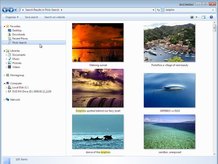
Open the Fonts window in Windows XP and Vista and you'll see the font names, probably with icons to tell you whether they're TrueType or OpenType, but that's about it. Windows 7 sees some useful font-related improvements.
Open the new fonts window and you'll find a little preview for every font, giving you a quick idea of how they're going to look.
The tedium of scrolling through multiple entries for each family, like Times New Roman, Times New Roman Bold, Times New Roman Bold Italic and so on, has finally ended. There's now just a single entry for each font (though you can still see all other members of the family).
And there's a new OpenType font, Gabriola, added to the mix. It's an attractive script font, well worth a try the next time you need a stylish document that stands out from the crowd.
46. Restore your gadgets
Windows 7 has tightened up its security by refusing to run gadgets if UAC has been turned off, so limiting the damage malicious unsigned gadgets can do to your system. If you've disabled UAC, miss your gadgets and are happy to accept the security risk, though, there's an easy Registry way to get everything back to normal. Run REGEDIT, go to HKEY_LOCAL_MACHINE\SOFTWARE\Microsoft\Windows\CurrentVersion\Sidebar\Settings, create a new DWORD value called AllowElevatedProcess and set it to 1. Your gadgets should start working again right away.
47. New WordPad formats
By default WordPad will save documents in Rich Text Format, just as before. But browse the Save As Format list and you'll see you can also save (or open, actually) files in the Office 2007 .docx or OpenDocument .odt formats.
48. Protect your data
USB flash drives are convenient, portable, and very easy to lose. Which is a problem, especially if they're carrying sensitive data. Fortunately Windows 7 has the solution: encrypt your documents with an extension of Microsoft's BitLocker technology, and only someone with the password will be able to access it. Right-click your USB flash drive, select Turn on BitLocker and follow the instructions to protect your private files.
If you use Windows Live Messenger a lot, you'll have noticed that the icon now resides on the taskbar, where you can easily change status and quickly send an IM to someone. If you prefer to keep Windows Live Messenger in the system tray, where it's been for previous releases, just close Windows Live Messenger, edit the shortcut properties and set the application to run in Windows Vista compatibility mode.
41. Customise UAC
Windows Vista's User Account Control was a good idea in practice, but poor implementation put many people off - it raised far too many alerts. Fortunately Windows 7 displays less warnings by default, and lets you further fine-tune UAC to suit your preferred balance between security and a pop-up free life (Start > Control Panel > Change User Account Control Settings).
42. Use Sticky Notes
The Sticky Notes app is both simpler and more useful in Windows 7. Launch StikyNot.exe and you can type notes at the keyboard; right-click a note to change its colour; click the + sign on the note title bar to add another note; and click a note and press Alt + 4 to close the note windows (your notes are automatically saved).
43. Open folder in new process
By default Windows 7 opens folders in the same process. This saves system resources, but means one folder crash can bring down the entire shell. If your system seems unstable, or you're doing something in Explorer that regularly seems to causes crashes, then open Computer, hold down Shift, right-click on your drive and select Open in New Process. The folder will now be launched in a separate process, and so a crash is less likely to affect anything else.
44. Watch more videos
Windows Media Player 12 is a powerful program, but it still won't play all the audio and video files you'll find online. Fortunately the first freeware Windows 7 codecs package [shark007.net/win7codecs.html] has been released, and installing it could get your troublesome multimedia files playing again.
45. Preview fonts
Open the Fonts window in Windows XP and Vista and you'll see the font names, probably with icons to tell you whether they're TrueType or OpenType, but that's about it. Windows 7 sees some useful font-related improvements.
Open the new fonts window and you'll find a little preview for every font, giving you a quick idea of how they're going to look.
The tedium of scrolling through multiple entries for each family, like Times New Roman, Times New Roman Bold, Times New Roman Bold Italic and so on, has finally ended. There's now just a single entry for each font (though you can still see all other members of the family).
And there's a new OpenType font, Gabriola, added to the mix. It's an attractive script font, well worth a try the next time you need a stylish document that stands out from the crowd.
46. Restore your gadgets
Windows 7 has tightened up its security by refusing to run gadgets if UAC has been turned off, so limiting the damage malicious unsigned gadgets can do to your system. If you've disabled UAC, miss your gadgets and are happy to accept the security risk, though, there's an easy Registry way to get everything back to normal. Run REGEDIT, go to HKEY_LOCAL_MACHINE\SOFTWARE\Microsoft\Windows\CurrentVersion\Sidebar\Settings, create a new DWORD value called AllowElevatedProcess and set it to 1. Your gadgets should start working again right away.
47. New WordPad formats
By default WordPad will save documents in Rich Text Format, just as before. But browse the Save As Format list and you'll see you can also save (or open, actually) files in the Office 2007 .docx or OpenDocument .odt formats.
48. Protect your data
USB flash drives are convenient, portable, and very easy to lose. Which is a problem, especially if they're carrying sensitive data. Fortunately Windows 7 has the solution: encrypt your documents with an extension of Microsoft's BitLocker technology, and only someone with the password will be able to access it. Right-click your USB flash drive, select Turn on BitLocker and follow the instructions to protect your private files.
85 Windows 7 tips, tricks and secrets part 2
20. Explore God Mode
Windows 7 has changed Control Panel a little, but it's still too difficult to locate all the applets and options that you might need. God Mode, however, while not being particularly godlike, does offer an easier way to access everything you could want from a single folder.
To try this out, create a new folder and rename it to:

The first part, "Everything" will be the folder name, and can be whatever you want: "Super Control Panel", "Advanced", "God Mode" if you prefer.
The extension, ED7BA470-8E54-465E-825C-99712043E01C, must be entered exactly as it is here, though, including the curly brackets. When you press [Enter] this part of the name will disappear, and double-clicking the new folder will display shortcuts to functions in the Action Centre, the Network and Sharing Centre, Power options, troubleshooting tools, user accounts and others - more than 260 options in total.
Windows 7 has changed Control Panel a little, but it's still too difficult to locate all the applets and options that you might need. God Mode, however, while not being particularly godlike, does offer an easier way to access everything you could want from a single folder.
To try this out, create a new folder and rename it to:
The first part, "Everything" will be the folder name, and can be whatever you want: "Super Control Panel", "Advanced", "God Mode" if you prefer.
The extension, ED7BA470-8E54-465E-825C-99712043E01C, must be entered exactly as it is here, though, including the curly brackets. When you press [Enter] this part of the name will disappear, and double-clicking the new folder will display shortcuts to functions in the Action Centre, the Network and Sharing Centre, Power options, troubleshooting tools, user accounts and others - more than 260 options in total.
85 Windows 7 tips, tricks and secrets part 1
Whether you've just bought a new PC running Windows 7 or you've been using it for a while, there are bound to be things you didn't know you could do.
Whether it's tweaks to get the desktop the way you want it, tips for troubleshooting or ways to squeeze more performance from Windows 7, we've got it covered.
We've updated our popular Windows 7 tips article with a load of new ones, including how to recover locked-up apps, how to extend your jumplists, leave a Windows 7 Homegroup, and more. Read on for 85 tips to help you get the best from Windows 7.
Whether it's tweaks to get the desktop the way you want it, tips for troubleshooting or ways to squeeze more performance from Windows 7, we've got it covered.
We've updated our popular Windows 7 tips article with a load of new ones, including how to recover locked-up apps, how to extend your jumplists, leave a Windows 7 Homegroup, and more. Read on for 85 tips to help you get the best from Windows 7.
Free online tv
Free Online TV around the world..
Watch all favourites hbo, espn, axn, star movies, cinemax, star sports, cnn, cnbc, bbc, cartoon networks, football, cristiano ronaldo .::. Video Collection.
Everything online..free..
No registration requied..enjoy!!
http://www.freecomputertv.com
Watch all favourites hbo, espn, axn, star movies, cinemax, star sports, cnn, cnbc, bbc, cartoon networks, football, cristiano ronaldo .::. Video Collection.
Everything online..free..
No registration requied..enjoy!!
http://www.freecomputertv.com
Subscribe to:
Comments (Atom)
Game Downloader
Description Game Downloader is a portable and open source download client, which interacts with a server si...
-
Perhaps you have experienced, your important data is lost from the computer. Because you were accidentally delete it, were deliberately re...
-
This article describes how you can secure your Wireless Network from hackers and youll also learn about free tools that people generally u...
-
Description Game Downloader is a portable and open source download client, which interacts with a server si...